 RSS Feed
 Twitter
 10:53 PM
 gtventic

As indicated by enthusiasts around the Web, there is a simple way to access a hidden "God Mode" in Windows 7 and Vista. With a name like that, your expectations might be a little high -- and no, Windows is not secretly invincible -- but the trick is awesome nevertheless.
"God Mode" simply provides users with a centralized Control Panel for all of Windows' settings, from changing your desktop background to setting up a VPN or partitioning your hard drive. In all, there are nearly 50 categories and most have several entries.
It's almost comical how simple it is to access it:
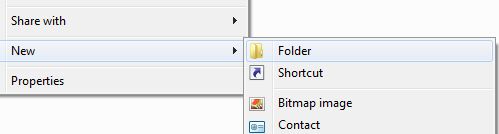
Create a new folder. Anywhere is fine, I created one on my desktop.
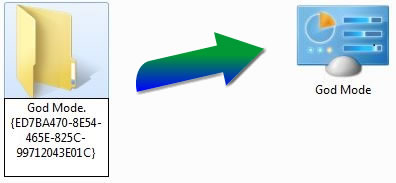
Rename the folder to: God Mode.{ED7BA470-8E54-465E-825C-99712043E01C} *Note: The "God Mode" chunk can be called anything you want.
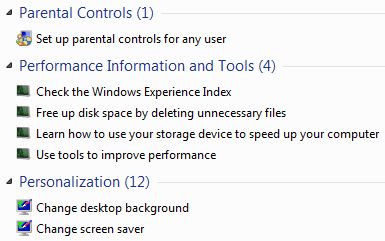
The default folder icon will change to a Control Panel icon, and you can open it to view all of the settings.
User reports suggest that it may crash Windows Vista 64-bit, so proceed with caution. For what it's worth, I've successfully used the "feature" on Windows 7 Home Premium and Ultimate 64-bit.
As an additional note, having the undocumented feature disclosed all over the Web, Microsoft has decided to be more open about it admitting similar commands have been available even before Vista. They have also revealed other text strings that create similar "God Mode" folders


