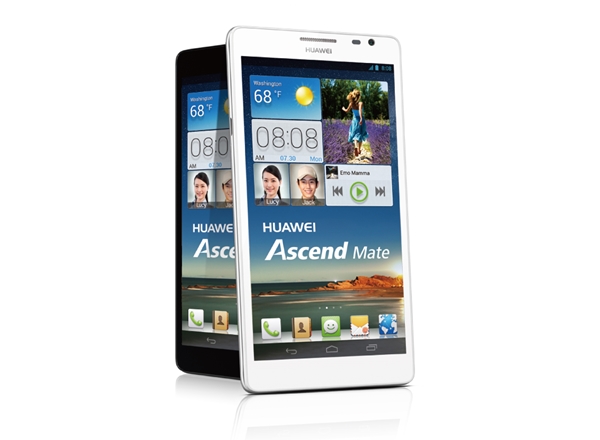
Windows 8 was a necessary update for Microsoft but it received mixed reviews from users.  It had a lot of missing features and did not feel like it was one cohesive product.  It was as if Microsoft hastily incorporated touch gestures and a fresh UI to its operating system but did not really know what to do with it moving forward.  What Microsoft was only sure of, it seems, is that it had to make Windows relevant in a world where touch-operated displays are the norm.  Thankfully, Microsoft was listening to the complaints and suggestions of users.  The result is Windows 8.1 which is really a major update considering the features Microsoft added to the OS.

One of the most heated debates with Windows 8 was the removal of the Start button which has been present in all versions of Windows before Windows 8 came along.  In Windows 8.1, the Start button is back and you can almost hear a uniform sigh of relief from fans of the button.  The tiles can now be resized to more sizes, the most notable of which is the large tile which obviously can hold more information.  There is also a quick access to the list of apps which is by an upward swipe gesture on the menu.  This was not present in Windows 8.
  
Another important update on Windows 8.1 is the ability for users to boot directly to the desktop.  Before the update, booting Windows means you go straight to the Start Menu.  Another improvement when it comes to aesthetics is the addition of dynamic backgrounds which are also more customizable on Windows 8.1.
Before Windows 8.1 also now allows better customization when it comes to resizing windows which now supports 50/50 split view, for instance.  The OS also now makes it possible to set up multiple monitors.  There are other improvements and a lot of them are on the core Microsoft apps.  For more details on the update, watch this video.

Windows 8.1 is available for download for free for current Windows 8 users.  It is available as a free download to users of Windows Vista, Windows 7 and other versions but on an ISO format.  Go here to download Windows 8.1 Preview.  Note that the final version of Windows 8.1 will be released before the year ends.  The final version will no longer be free.
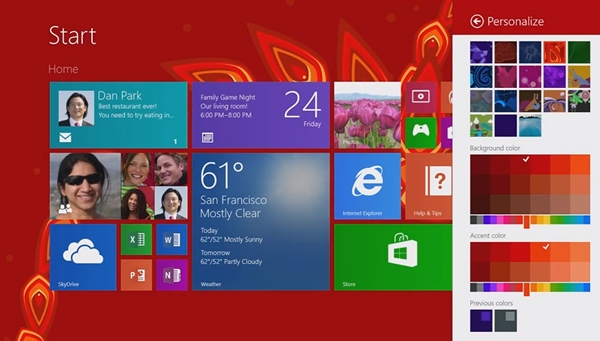
 

windows 81 preview download Windows 8.1 Preview Now Available for Download
Getting a Free Phone number from internet is easy, but getting a Unique number for you Only is truly hard. How about to Get a Free Unique Phone Number from United Kingdom, not only this but also you Forward calls to your mobile phone for Free... You can then receive international and business calls to your local mobile phone while using a UK phone Number. Also you can use this to Verify Gmail, Facebook, Payza accounts with Phone calls


How it Works?

You register an account at the website below, you are given to chose between many UK numbers that starts with +44, you setup your local phone number or mobile number to receive calls, finally Activate Route to enable call forwarding and receive calls for Free.

How to Get a Free Phone Number & Forward Calls to your Mobile


1) Go to Free UK Numbers

2) Click Register button, it will redirect you the Signup page.

Free uk virtual phone number + call forwarding ztuts.com 1.png

3) Enter your correct First Name, Last Name and Email address for the signup process, then Click Register button to complete registration.


4) After Signup, it will automatically redirects you to your account. Select wisely the Virtual Phone Number you want to use.


5) After choosing the virtual phone number, Enter your Local or Mobile Phone number in-which you'll receive forwarded calls, Your Mobile or Local Number should not contain the + character just enter the Country code followed by your phone number.


6) Finally Click Activate Route to activate call forwarding.

7) Now you own a Free Virtual Phone Number from United Kingdom, you can use it on internet, business jobs, Verifying Google, Facebook, Payza or any other online accounts.


.


DNS server, for Domain Name System, is the layer that resolves domain names and translates them to IP address (example: www.google.com ---DNS---> 74.125.225.233 ) that's the role of the DNS server. DNS servers' speed depends on many factors, like the location of the server, the speed of resolving domains, the port speed of DNS server... If you choose the best DNS according to its speed you'll gain more fast How to Speed up Internet Connection using DNS we talked about How to set Google's DNS server to speed up your connection.

Internet Connection speed with a simple tweak.


How it Works?


This trick will help you finding the best & fastest dns server for your internet connection. First it lists all available and good dns servers, then when you start the benchmark it will tests the speeds of all DNS servers listed ( cached speed, uncached speed, dotcom speed...) and finally gives the result. Then you have to choose one of the Fastest DNS and set your computer to point on it.


How to Find the Best DNS for Faster InternetConnection


1) Download DNS Benchmark


2) After Downloading DNS Benchmark, launch the executable.

3) It will start analyzing and listing available DNS IPs, Wait until it lists the most of DNS


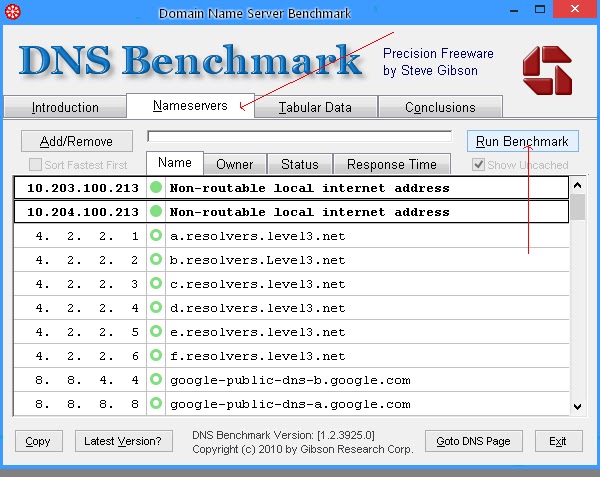
4) Go to Nameservers then Click Run Benchmark


5) DNS Benchmark will start analyzing the speed of every server, just wait some time to finish testing.


6) After finishing the test, Click on Response Time tab to order them with Low Latency + High Speed 

7) The first DNS should be the Fastest one, choose it and set your Computer to Point to this DNS Server.


SEE: HOW TO CHANGE DNS

DNS refer to Domain Name System, it resolves the domain name queries and convert it into IP addresses to  allow web browsers find the domain associated with the keyword entered (e.g google.com = ip address). By changing default DNS of your ISP (Internet Service Provider) you can access the Internet with higher speed and more efficient. This technique will allow you to change your Computer's DNS in Google's DNS.

How to Speed up Internet Connection with DNS


1) Go to Control Panel > Network and Sharing Center

2) Click on the active connection link to go to settings.


3) Click Properties


4) Now check the radio button in DNS section and change DNS Settings like the following:

8.8.8.8
8.8.4.4


5) Click OK then Apply the settings.

6) Done! Now feel higher Internet connection by Google's Public DNS.


If your computer is used by other people than you and you want to block access to certain programs or windows applications to gain more privacy within your computer, then it's easy to lock apps using a free tool called AppLock by Smart-x company. This tool allows you to protect your favorite programs from being ran by others while you keep your privacy safe. So here's a tutorial on How to Lock Programs in Windows with 1 Click.


How to Lock Programs in Windows


1. Go to AppLocker website and Register for an account to download the tool


2. After you click download, extract the .zip file and install AppLocker


3. Launch AppLocker from your desktop, it will list all Windows Applications : Calculator, Internet Explorer, MS Paint and many others.


4. Just Select the apps you want to lock and click Save 


Note-1: The tool will list only common programs and default windows apps, to add your programs then follow the steps 5 and 6:

5. To add your own programs, click Configure.. , in Caption type a name for the app, in Executable File Name type the .exe file name (e.g: PhotoshopCS5.exe )


6. Click Add then Ok, check your program from the list and click Save


Note-2: When you run the locked program it will show an error similar to the below image:


[source ztuts]

Most of the people now prefers Google Chrome as the greatest web browser ever released, it's well known with the best performance and simple user interface which makes it easy to use for all kind of people, it takeover more
than 50% of the Web Browsers usage in the world. However some of its users might face a serious problem about Huge Memory Consumption from Chrome, it starts draining your computer's available RAM and prevents you from performing any other tasks like gaming. Like we have seen before Fix Firefox RAM Consumption So here are some few tips that will help you reduce Google Chrome's memory leaks.


1.  OneTab Extension


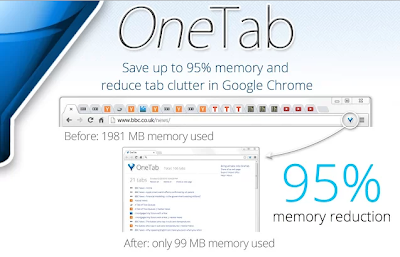
OneTab is a great extension that helps Chrome reduce memory usage by closing and regrouping all the opened tabs in one click. Whenever you find that you opened many tabs and you don't need any of them for the moment, just click OneTab from the extension bar and it will close all those tabs to regroup them in a single list for later use. OneTab can help you reduce more than 90% of RAM

2. Kill Memory Eating Tabs / Extensions


Google Chrome came with a built-in task manager that will help you identifying memory eaters (Tabs and Extensions). It lists all opened and running pages with their memory usage. Pages that uses too much of RAM are pages running many scripts (Javascript...), plugins(Flash, Java...), after identifying them you just kill their tasks. Here's how to do it:


Press Shift + Esc (opens Task Manager)
Double Click the Memory tab (reorders tasks by memory)
Select the pages with High Memory and click End Process


3. TGS Extension


TGS or The Great Suspender is a very important Chrome utility that auto kills idle tabs, what that means? Ok, while using Google Chrome all opened tabs are draining memory even when we don't use them, so that's why we use TGS as it helps us auto killing those non-used tabs (idle) after specified time (5minutes to 60 minutes) which will improve your computer's speed by gaining more memory.

After you install The Great Suspender, Right Click the extension > Options and setup your configuration (whitelist, timeout..)


The SmartWatch 2 is an Android-powered wristwatch that doubles as an extra display for your phone and acts as remote control as well.  The SmartWatch 2 is able to display your device’s notifications including Facebook and Twitter, emails, texts and can also be used to handle calls and snap photos.  The new watch has a bigger 1.6-inch touch display with 220 x 176 resolution.  The SmartWatch 2 is water resistant with IP57 rating just like the Xperia Z.  It has NFC support and also has Bluetooth 3.0.  The battery will last four days according to Sony, which honestly is good enough.  The SmartWatch 2 will only work with Android devices running version 4.0 or higher so if you have a lower version of Android, stop drooling now and update your device first.
sony smartwatch 2 600x430 Sony SmartWatch 2 Unveiled
Here are the functions of the SmartWatch 2 listed by Sony in its press release.
  • Handle your calls by a simple touch of your wrist
  • Take a photo remotely from your SmartWatch, using a smart camera app
  • Control your presentations remotely using Presentation Pal
  • Taking a run or on the bike? Select a mapping app on SmartWatch to check your route with a quick glance at your wrist
  • Read previously downloaded e-mails when not connected to your phone
  • Use lifestyle apps like Runtastic to map and instantly track your fitness activities on the go
  • Quickly and easily adjust the tracks and volume on your music player, without ever taking your phone from your pocket
The design has been improved as the Sony SmartWatch 2 looks better than the previous iteration.  It has an aluminium body and a sleek strap that is said to be removable and can be swapped with a stainless steel wristband for instance.  Sony is said to be planning on releasing more straps in the future.
There are no details on pricing yet but released date is said to be anytime in September.
The popularity of the internet has spawned a lot of websites serving practically all kinds of purposes it’s hard to find the good and useful ones.  One of the websites I came across recently that you might find useful is Coffitivity.  This website is perfect for those who frequent coffee shops in order to work or just lounge around.
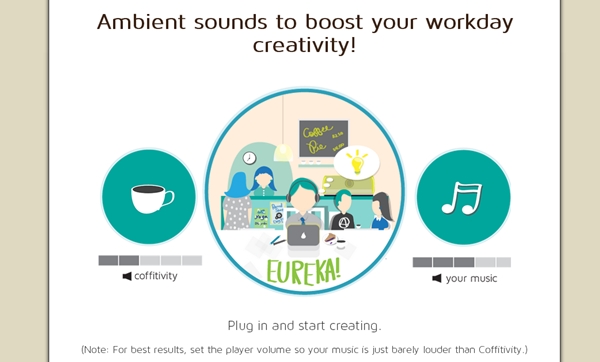
What Coffitivity offers is simple – an audio background that mimics what you hear in a coffee shop.  For whatever reason, some people actually need this kind of sound.  Some people are so used to the coffee shop setup that they are most productive in such a setting so Coffitivity may come in handy when they are at home or in some other place.  Some just need the semblance of a coffee shop to be able to relax or enjoy their cup of coffee even when they are just at home or in the office.  When you’re using Coffitivity, you hear people talking and you also hear sounds coming from cups and spoons.  When you close your eyes you can easily imagine that you’re actually in a coffee shop.
coffitivity Bookmark This: Coffitivity.com
What you need to do is just point your browser to coffitivity.com and the audio automatically plays.  Yu can adjust the volume depending on the kind of “noise” you are comfortable with.  The site recommends that you play your music just a notch higher than the Coffitivity audio for a perfect setup.   The site is actually working on an iOS and Mac app and when released, they will provide the same experience offline.
I have been using Coffitivity at home for quite some time now.  Sometimes what I only need is the feel of the coffee shop so Coffitivity saves me time, and money of course. 
[source: Technobaboy]


Starmobile Knight Specifications
Dual SIM / Dual Standby / Dual 3G
1.2GHz quad-core MediaTek MT6589 Processor, Cortex-A7
4.7-inch HD (1280×720) IPS capacitive display
315ppi with Corning Gorilla Glass
PowerVR SGX544MP GPU
Android 4.2 (Jelly Bean)
1GB of RAM
4GB of internal storage
microSD card slot up to 32GB
18MP autofocus camera with BSI and dual LED flash
1080p Full HD video recording and playback
8MP autofocus front-facing camera with BSI
Bluetooth v3.0 with EDR and A2DP
microUSB v2.0 / 3.5mm audio jack
Wi-Fi 802.11 b/g/n / Wi-Fi hotspot
FM Radio / Multimedia Player
GPS with A-GPS support
GSM 900/1800MHz (Dual Band)
HSDPA 42Mbps / HSUPA 11.5Mbps
3G/HSPA+ 850/2100MHz
Li-Ion 2000mAh battery (removable)
Standby time up to 2G: 390hrs / 3G: 285hrs
Talk time up to 2G: 15hrs / 3G: 8hrs
Motion / Light / Proximity Sensor
138 x 66.7 x 7.5mm (dimension)
130g (weight)
Color: Black and White
Price: Php11,290 (Official SRP)
Availability/ Release Date: July 2013

The Huawei Ascend Mate is already up for pre-order in the Philippines and the price tag is quite affordable considering the specs of the device.  The 6.1-inch phablet is priced at P16,990 in the Philippines and that places the Ascend Mate in the league of mid-range phones, price-wise.  In terms of features, however, the Ascend Mate merits a higher price.

The Huawei Ascend Mate is an Android Jelly Bean phablet powered by a 1.5 GHz Hi-Silicon quad-core processor, 2GB of RAM and a huge 4050mAh battery.  The device’s 6.1-inch HD IPS+ LCD screen has a resolution of 1280 x 720 that features ‘Magic Touch’ technology that allows screen use even with gloves.  The Ascend Mate is also slim, coming in at only 6.5mm thin at its narrowest part.  For imaging, the Huawei Ascend Mate features an 8-megapixel AF rear-facing camera with HDR and a 1.3-megapixel HD front-facing camera. Storage capacity is placed at 32GB but in case that’s insufficient, you can use the phone’s microSD card to expand storage.
huawei ascend mate philippines Huawei Ascend Mate Priced at PhP16,990 in the Philippines

Huawei Ascend Mate Specs

  • 6.1-inch 720p HD IPS display
  • 1.5GHz quad-core processor
  • 2GB of RAM
  • 32GB internal storage
  • microSD slot
  • 8 megapixel rear camera
  • 1.3 megapixel front camera
  • 4050 mAh
  • Android 4.1 Jelly Bean with Emotion UI
The Huawei Ascend Mate is available in crystal black and pure white.  If you want to pre-order you can head over to http://huaweidevice.com.ph/support/product-reservation/.

[Source: Technobaboy]